Shopify Flow and Sidekick in 2026: what you can automate without code, and when you need a custom app
Shopify Flow and Sidekick explained: plans, triggers, actions and workflow examples, where Flow stops, and when a custom Shopify app is the right tool.
By Rokibul Hasan8 min read
- Shopify
- Automation
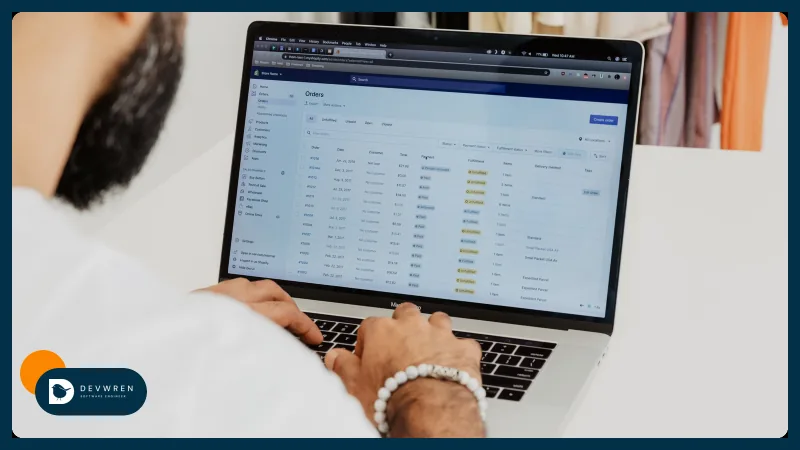
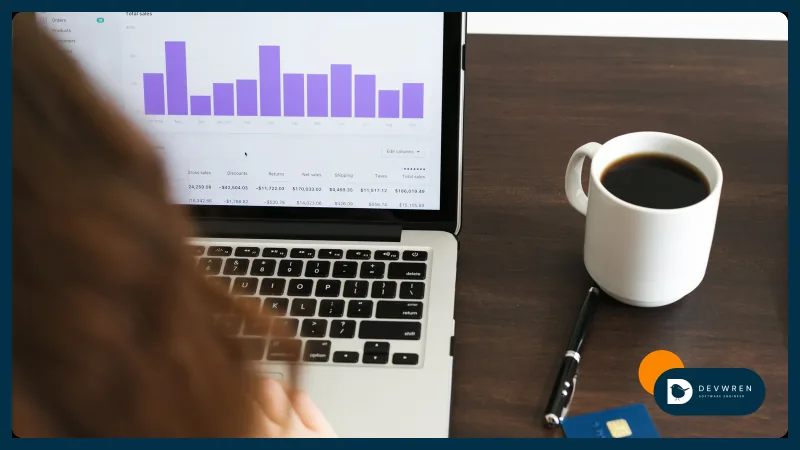
Most Shopify stores have a list of small jobs someone does by hand every day: tagging wholesale orders, holding risky ones, emailing the warehouse when a bestseller runs low, hiding products that have sold out. Shopify Flow is Shopify's own automation app for exactly this kind of work, and since December 2025 its assistant, Sidekick, can build a workflow from a sentence you type.
This guide is for store owners and the people who run operations for them: what Flow can do in 2026, which plan you need for which parts, the workflows worth setting up first, and where a custom app becomes the better tool. I build Shopify apps and automation for stores, so I work on both sides of that line.
What Shopify Flow is, and which plan you need
Flow watches your store for events and runs a sequence of steps in response. Every workflow has three parts:
- A trigger: the event that starts it, such as "Order created", "Order paid" or "Scheduled time".
- Conditions: checks on the data, such as "the order total is over $500".
- Actions: what Flow does, such as "Add order tags", "Hold fulfillment order" or "Send internal email".
According to Shopify's Flow documentation, Flow is a free app on the Basic, Grow, Advanced and Plus plans. Two things are gated by plan. The "Send HTTP request" action, which lets a workflow talk to outside systems, needs Grow or above. Tasks created by custom partner apps, meaning triggers and actions a custom app adds to Flow, only work on Plus. Usage limits also follow each plan's API limits, so a very busy store can see runs delayed at peak times.
Building workflows with Sidekick
In December 2025 Shopify added Sidekick to Flow. You describe the automation in plain language and Sidekick generates a workflow with a trigger, conditions and actions. It works on every main plan, from a desktop browser, and nothing goes live on its own: the workflow opens in the editor and you activate it yourself.
That matters, because Sidekick is good at common patterns (tagging, alerts, scheduled jobs), and Shopify itself says workflows needing advanced Liquid or custom code may need manual editing. Treat its output as a first draft: read every condition and test it before switching it on.
On Grow and above, Sidekick can also generate small admin-only apps. Customers never see them, and they cannot touch your theme or checkout.
Shopify Flow examples for real store jobs
These are the workflows I would set up before paying for anything.
Hold risky orders before they ship. Trigger: "Order risk analyzed". Condition: the risk level is high. Actions: "Hold fulfillment order", "Add order tags" (say review-risk) and "Send internal email" to whoever checks fraud. The order waits until a person releases it.
Warn purchasing before a bestseller runs out. Trigger: "Product variant inventory quantity changed". Condition: the quantity is below your reorder point and the product carries a reorder tag. Action: an internal email with the SKU, the quantity and the supplier from a product metafield.
Hide what you cannot sell, and bring it back. Trigger: "Product variant out of stock". Condition: every variant is at zero. Action: "Unpublish product". A twin workflow on "Product variant back in stock" publishes it again.
Tag your best customers. Trigger: "Order paid". Condition: the customer's total spend passes a threshold. Action: "Add customer tags", which your email tool and discounts can use.
A weekly tidy-up. Trigger: "Scheduled time". Actions: "Get product data" to find stale drafts, then a "For each" loop that tags them for review. Scheduled workflows can run as often as every 10 minutes, and a For each loop handles up to 1,000 items, so this suits housekeeping rather than rewriting a whole catalogue.
Send HTTP request and Run code
Two actions turn Flow from a tagging tool into something closer to glue code.
Send HTTP request calls any web address with the method, headers and body you choose. That is how a workflow tells a 3PL about an order or posts to a team chat webhook. Flow waits up to 30 seconds for a reply, can retry failed calls for up to 24 hours, and keeps API keys as secrets that never appear in the interface or run logs. Later steps can read the response.
Run code runs a short JavaScript function on data from earlier steps: parsing an order note, building a label, working out a dispatch date. It is deliberately boxed in. No network calls, no imported modules, five seconds and 10 MB of memory per run, and no random or clock functions. Think of it as a calculator, not a server.
Flow's limitations: what to know before you rely on it
These are the edges stores run into:
- It only sees Shopify. A sale on Amazon, Etsy or TikTok Shop never starts a workflow. Send HTTP request can push data out, but nothing in Flow pulls an order in from another marketplace.
- No memory between runs. Anything you need to remember, such as what you last sent to the warehouse, has to live in metafields or another system.
- Plan gates. No outside calls on Basic; custom-app tasks only on Plus.
- Size limits. For each loops stop at 1,000 items, each section of a workflow has a 36-hour execution limit, waits can add up to 90 days, and a store can hold 1,000 workflows.
- Basic error handling. A failed step fails the run and you can be alerted, but there is no queue of failed jobs to replay and no check that Shopify and the other system still agree.
Shopify Flow vs Zapier
They overlap less than people expect. Flow is free, runs inside Shopify, starts the moment an event happens and can change almost anything in your store, from tags and metafields to fulfilment holds and raw Admin API requests. Its weakness is everything outside Shopify.
Zapier, Make and n8n sit outside every platform. They are good at moving data between Shopify, a spreadsheet and a CRM, but they bill by task, credit or execution, and many triggers poll on a timer. I worked through their costs at real order volumes in Zapier, Make, n8n or custom code.
My rule of thumb: if both ends of the job are in Shopify, use Flow. If one end is a spreadsheet or your email platform, a no-code connector is fine. If the job keeps two sales channels in agreement, neither is enough.
When you need a custom Shopify app
A custom app is the right tool when one of these is true:
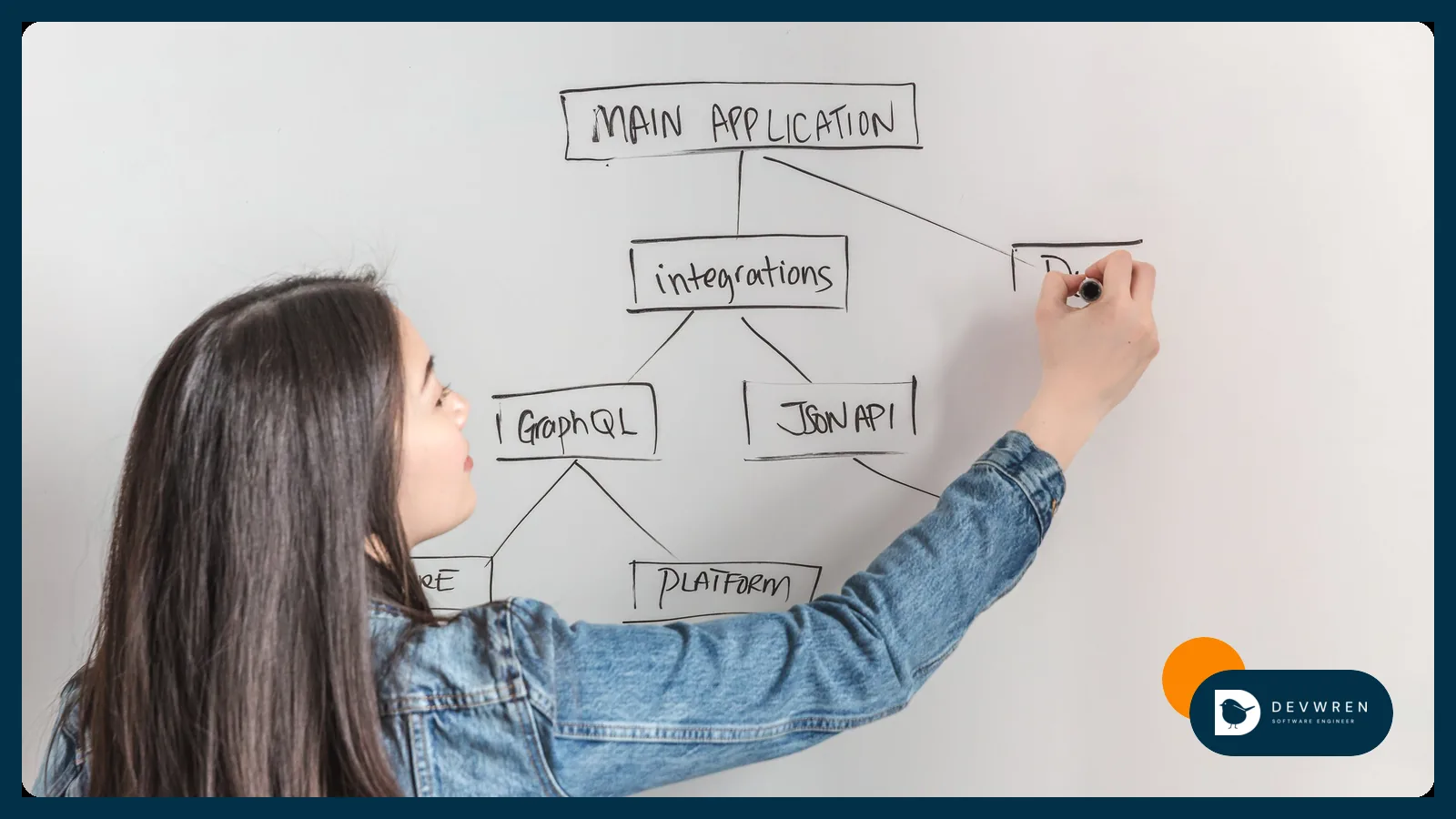
- The logic crosses channels. Keeping stock in sync between Shopify, Amazon and TikTok Shop needs something that listens to every platform, stores state and reconciles. That is a small backend, not a workflow.
- Your staff need screens. A review queue, a settings page, a rule builder.
- The storefront or checkout has to change. Flow runs after events; it cannot add a step to a product page. Checkout logic such as custom discounts or delivery rules runs on Shopify Functions, and custom apps containing Functions only run on Shopify Plus. On other plans that logic has to come from a public app.
- Reliability matters more than convenience. Webhooks into a queue, retries you control, a searchable log and a nightly check that both systems agree.
Since 1 January 2026, new custom apps can no longer be created in the Shopify admin. Existing legacy custom apps keep working, but new ones are created in the Dev Dashboard, where an app using the client credentials grant gets access tokens that last 24 hours and must renew them. Tutorials that say "create a private app in your admin" are out of date.
A checklist before you switch a workflow on
- Write the job as one sentence: "When X happens, if Y, do Z." If you need "and later, unless", expect a Wait step or a custom app.
- Start from a template or a Sidekick draft, then read every condition yourself.
- Tag everything the workflow changes, so you can find and undo its work.
- Test on real data, limited by a condition such as a
flow-testtag, and read the run log daily for the first week. - Keep a list of active workflows. Shopify warns you when more than ten share a trigger, and by then they are hard to reason about.
What it costs: Flow, an app or custom work
- Flow and Sidekick are free on every main plan. The cost is staff time, plus Grow for outside calls.
- An App Store app comes next. If one does 90% of the job, a subscription beats a build.
- A custom app covers the rest. My Shopify app plans start at $2,000 for one focused feature on your store (MVP), $4,500 for a storefront flow plus admin screens with order and product data kept in sync (Flexible), and $8,000 for a public app built for many stores (Advanced). Automation across channels, such as Shopify with Amazon or TikTok Shop, falls under my marketplace and e-commerce plans, from $2,500. All of these are starting prices, and you get a fixed quote once I have read your brief.
Often the answer is both. My e-commerce automation guide explains what to automate first, and the Shopify automation section lists what this work usually covers.
FAQ
Is Shopify Flow free on the Basic plan?
Yes. Flow is a free app on the Basic, Grow, Advanced and Plus plans, and Sidekick can draft workflows on all of them. What Basic lacks is the Send HTTP request action, so a Basic store cannot call outside systems such as a warehouse, an ERP or a chat webhook from a workflow. Tasks added by custom partner apps need Plus, and usage limits follow each plan's API limits.
Can Shopify Flow sync inventory with Amazon or TikTok Shop?
Not on its own. Flow's triggers come from your Shopify store and its installed apps, so it never hears about a sale on Amazon, Etsy or TikTok Shop. It can push data out with Send HTTP request on Grow and above, but keeping stock in agreement needs something that listens to every channel, remembers what it sent and checks for drift. That is a job for a channel app or a small custom integration with its own database.
Should I let Sidekick build my Flow workflows?
Yes, as a starting point. Sidekick turns a plain-language description into a workflow with a trigger, conditions and actions, and the workflow stays inactive until you switch it on. It handles common patterns such as tagging, alerts and scheduled jobs well. Read every condition before activating, test it on a tagged order or product, and expect to edit anything that needs advanced Liquid or custom code.
If you have reached the edge of what Flow can do, send me a short brief: the job in one sentence, your Shopify plan, the other systems involved and how you handle it today. You can start from the Shopify app MVP plan, read more about Shopify store automation, or see what a custom Shopify app costs in 2026 before you decide.